 MY BOWLING JOURNEY
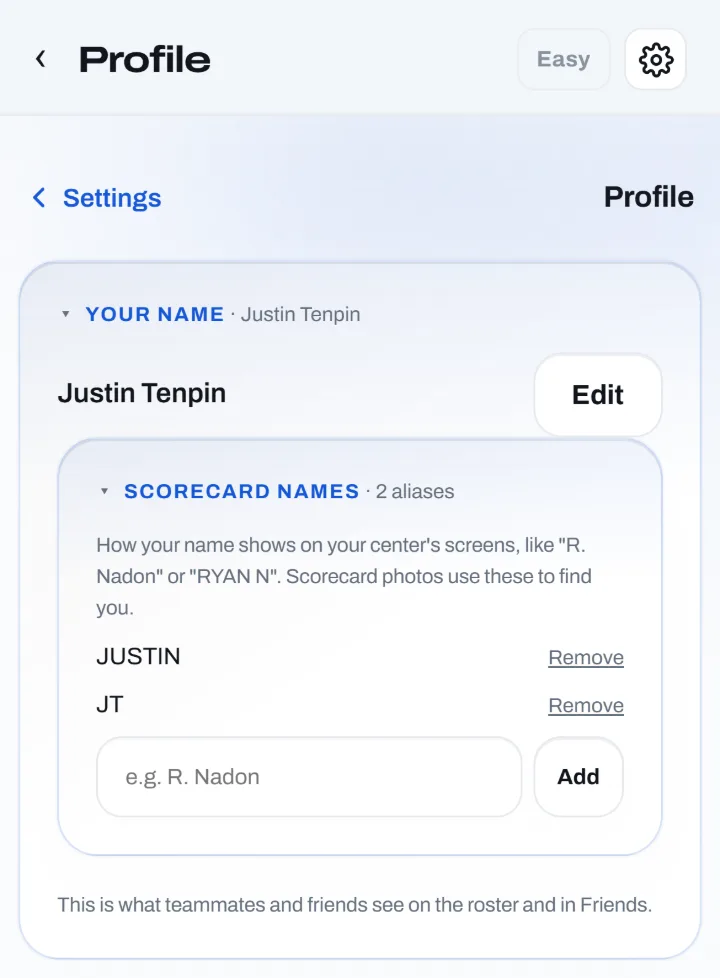
Your center's screens show whatever the desk typed in: "J. Tenpin", "JUSTIN", sometimes a nickname. Scorecard Names tells the app those names are you, so a scorecard photo finds your games.
Adding one
- Go to Settings > Profile. Scorecard Names is inside the Your Name card.
- Type the name the way your center shows it.
- Tap Add.
Add as many as you need. To take one off, tap Remove beside it. The card's heading says how many you have, like "2 aliases", or None.
Capitals, dots and dashes don't matter: "J. Tenpin" and "j tenpin" are the same name.
How a photo finds you
Reading a scorecard photo is part of Pro (Scorecard Snap). The app reads each name on the card and looks for it among your team's bowlers. For you, it checks your name in the app and every scorecard name you've added.
- A name that's exactly yours, or exactly one of your scorecard names, is matched for you.
- So are the usual short forms of your name: your first initial and last name ("J. Tenpin"), or your first name and the first letter of your last ("Justin T").
- Anything less sure, like your first name on its own, is only suggested. You pick the bowler on the review before anything is saved.
- If two bowlers fit a name equally well, the app doesn't pick. It asks.
So you only need a scorecard name when your center shows something the app can't work out, like "JUSTIN" alone, a nickname or a different spelling. Add it once and that name is matched for you every time.
The review where you check the names is on Importing scores.