 MY BOWLING JOURNEY
A dim house, a bright one, or a scoresheet on the desk: App appearance changes the app's colors. There are eight themes, and they're all free.
"Each one takes its color from a different part of the house. Dark ones for a dim center, light ones for a bright room or daytime."
Pick a theme
- Tap the gear (Settings) at the top right.
- Tap the Look and language tile.
- Under App appearance, tap a theme. The app changes straight away, and a ✓ marks the one you're using.
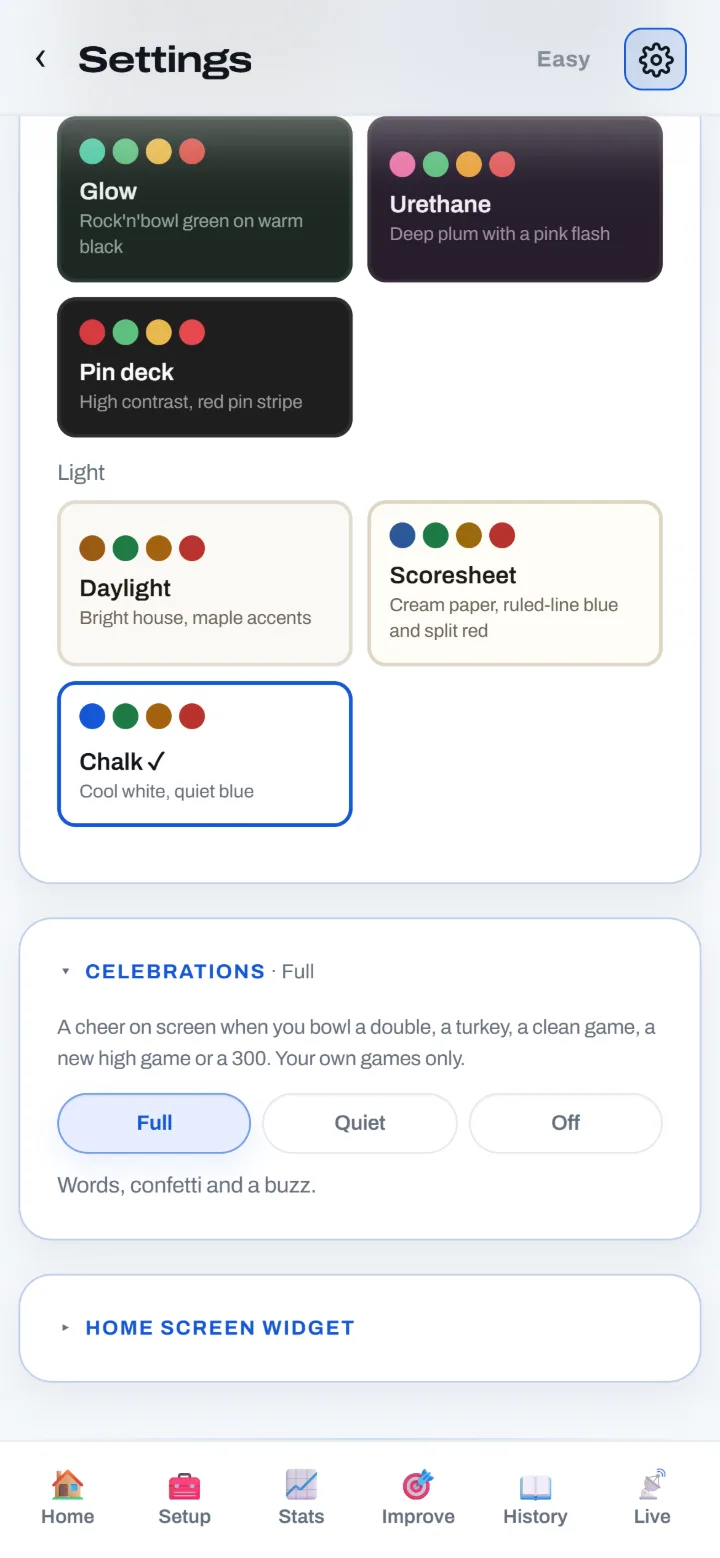
Each tile is drawn in its own colors, with four dots: the theme's main color, then its strike, spare and miss colors. Strikes stay green and misses red in every theme, so a scoresheet reads the same whichever you pick.
Dark
- Lane: Maple and amber, like the house lights are down.
- Classic: Slate and blue, the original look.
- Glow: Rock'n'bowl green on warm black.
- Urethane: Deep plum with a pink flash.
- Pin deck: High contrast, red pin stripe.
Light
- Daylight: Bright house, maple accents.
- Scoresheet: Cream paper, ruled-line blue and split red.
- Chalk: Cool white, quiet blue. A new account starts on Chalk.
Where it shows
- Your theme is saved with your account, so it's the same on every phone you sign in on and on the web.
- The Look and language tile in Settings shows your theme and your language under its name.
- The home screen widget doesn't take the theme. It's light or dark with your phone. See Home screen widget.
Celebrations
Under App appearance, Celebrations sets the cheer on screen for a double, a turkey, a clean game, a new high game or a 300: Full, Quiet or Off. See Celebrations and personal bests.