 MY BOWLING JOURNEY
Check your average without opening the app. The widget sits on your phone's home screen and keeps itself up to date every time you open the app or save a night. It's on the Android and iPhone apps, and it's free. The website has no widget.
"Your league average, your last league night and your next one, on your phone's home screen. It changes when you save a night."
Add it
The steps are in the app too, under Settings > Look and language > Home screen widget. On your home screen the app is called MBJ.
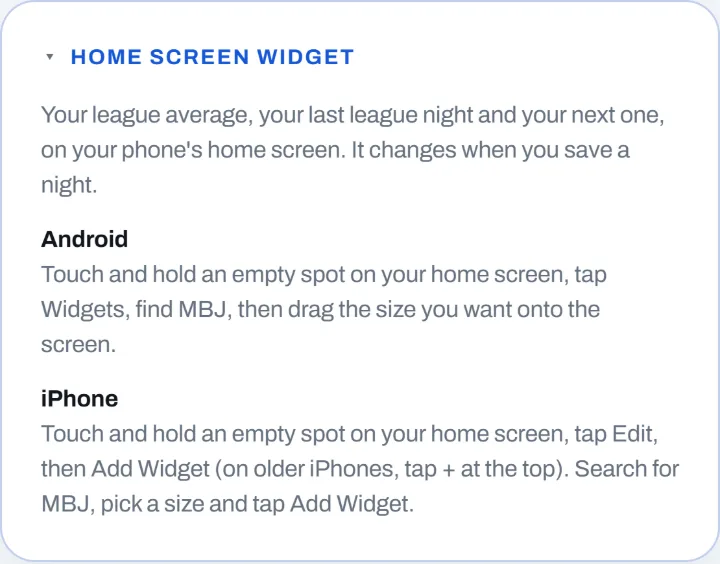
Android
- Touch and hold an empty spot on your home screen.
- Tap Widgets.
- Find MBJ, then drag the size you want onto the screen.
iPhone
- Touch and hold an empty spot on your home screen.
- Tap Edit, then Add Widget. On older iPhones, tap + at the top.
- Search for MBJ, pick a size and tap Add Widget.
What it shows
There are two sizes. The small one shows:
- League average, to two decimals. Until you have league games this season, it says No games yet.
- High game and High series for the season.
- Next league night: tonight, tomorrow, or the day of the week, with the time the league starts, like "Tuesday at 9:00 PM".
The wide one adds your name, the Last league night with its league and series (like "Series 612"; a night that isn't three games lists each game), and the next night's league.
Tap the widget to open the app on Home.
What it counts
- The average, high game and high series are this season's, the same figures Home shows. See Home and the bottom tabs.
- The next league night is the night your league night reminder is set for: the night your league bowls, from the nights you've saved or the night you picked under Which night do you bowl?. A league you sub in counts only once you've turned its reminder on, and a league drops off after its season's end date. See Notifications.
- The time is the league's Starts at, set beside its reminder in Notifications. Until you set it, it's 7:00 PM.
- Justin Tenpin's example season never shows on it.
- Signed out, it says Open My Bowling Journey.
- It's light or dark with your phone, whatever theme the app is in.