 MY BOWLING JOURNEY
Your data in Settings is where your bowling goes in and out as spreadsheet files: Export saves your nights and shots, and Import scores brings past nights in. Both are free.
Reading a photo of the center's scorecard is a different import, on the night itself: see Importing a scorecard photo or scores.
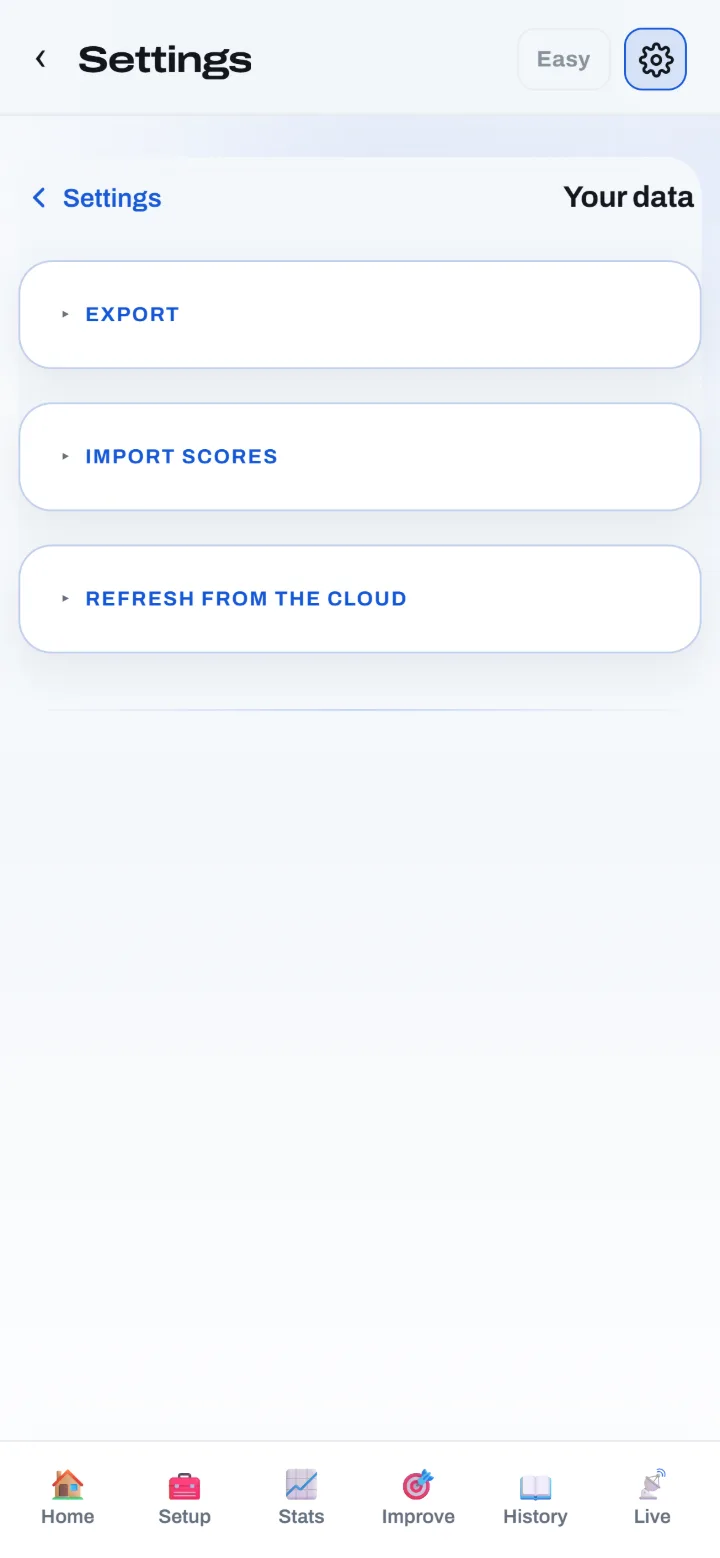
Export your nights and shots
- Tap the gear (Settings) at the top right.
- Tap the Your data tile.
- Open Export.
- Tap Sessions CSV or Shots CSV.
On a phone, your share sheet opens: save the file to your files or Drive, email it, or send it wherever you like. On the web, it downloads. Either file opens in any spreadsheet.
- Sessions CSV: one row a night. The date, league, each game, the series and average, strikes, spares made and tries, 10 pins, splits, and your side game money.
- Shots CSV: one row a ball. The date, league, game, frame and ball, lane, the ball you threw, the result and the leave, whether the spare was made, the pins, how a strike hit, and the details you logged: surface, starting board, target and actual arrows, speed, release, miss, notes and why it didn't strike.
Both hold your own bowling, every night you've saved, not your teammates'.
Import scores from a file
Kept your scores in a spreadsheet before you had the app? Bring them in as game totals.
"A CSV with four columns: date, game 1, game 2 and game 3. Dates look like 2026-09-17, scores are whole numbers from 0 to 300, and a night can be one, two or three games."
- The first row names the columns. "Game 1", "G1" and "game_1" all work, and so do the column names in the app's other languages.
- Commas, semicolons or tabs between the columns all work, so a file saved from Excel anywhere in the world comes in.
- A two-game night leaves game 3 blank. A blank between two scores, like 210, blank, 195, is skipped as a mistake.
- One night per date, up to 2,000 rows.
To import:
- In Your data, open Import scores.
- Under Import into, pick the league these nights belong to. Each league shows its season, like "Tuesday Night Mixed (2026-27)". "Leave it as Imported if these nights don't belong to a league you track."
- Choose your file.
- Check What would import: how many nights, and how many rows were skipped.
- Tap the import button, like "Import 12 nights". Nothing is saved until you do. When it's done, the card says "Imported 12 nights."
Rows that can't be imported
Each skipped row is listed under Rows that can't be imported with its row number and the reason, like "Row 5: date is in the future: 2027-01-12". A row is skipped when its date isn't written like 2026-09-17, doesn't exist or hasn't happened yet, when a score isn't a whole number from 0 to 300, when it has no scores, when a game is blank between two scores, or when its date is in the file twice. The other rows import either way. Fix the ones it lists in your spreadsheet and import the file again.
Nights you already have
If you already have a night on a date in the file, in the league you picked under Import into, the app lists those dates, like "3 nights you already have", and asks. A practice or another league's night that day doesn't count and isn't touched.
- Replace those nights: the file's scores take the place of those nights, and their frames and typed game scores go with them.
- "Keep mine, import the other 9": your nights stay as they are, and only the new dates come in.
- Cancel the import: nothing is saved.