 MY BOWLING JOURNEY
Your balls live on the Balls tab of Setup. Once a ball is there, you can pick it while you score, pack it in a bag, and see how it does on the Ball chip in Stats.
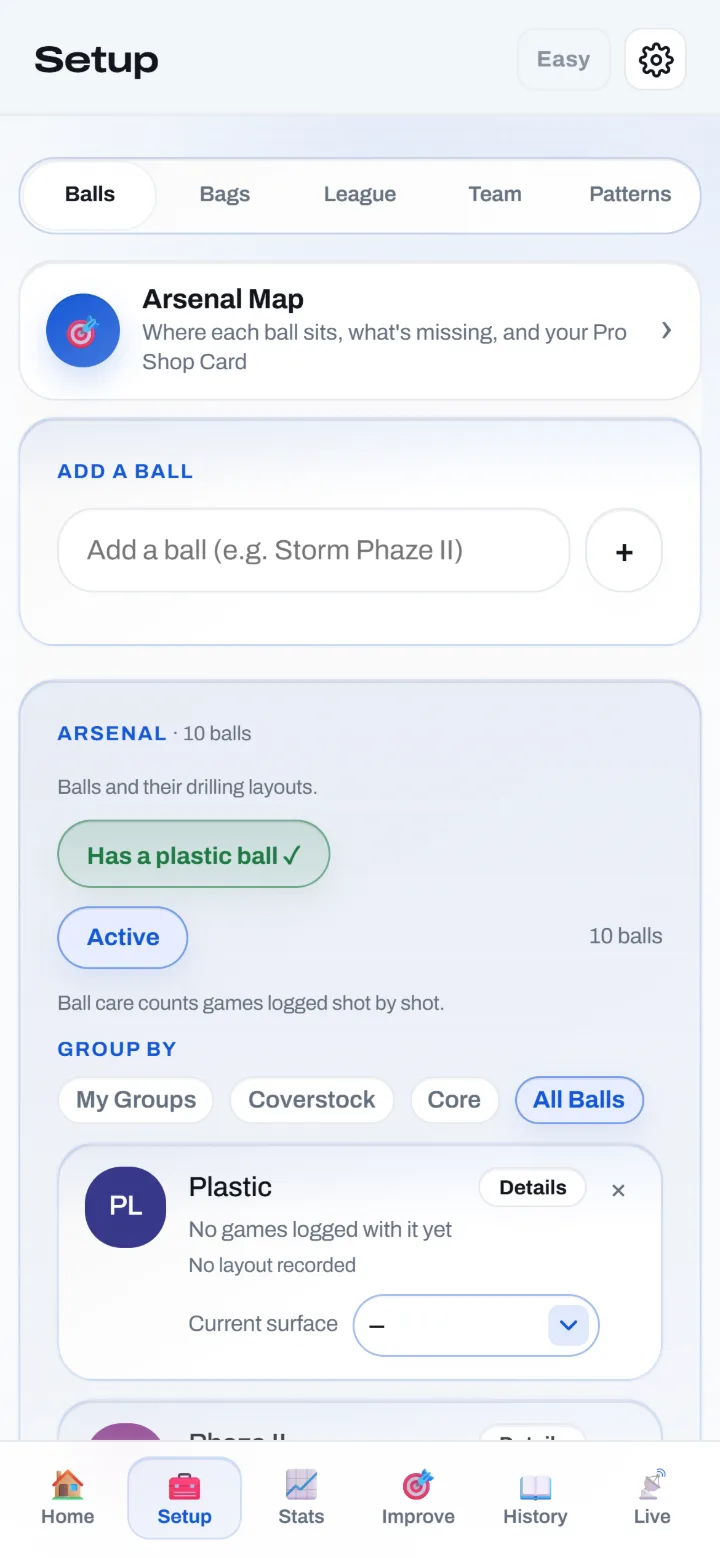
Add a ball by name
- Tap Setup at the bottom, then the Balls tab.
- Under Add a ball, type the ball's name, like Phaze II or Ion Max Pearl.
- Tap + (or Enter on your keyboard).
The ball joins your Arsenal, named exactly as you typed it. A name that's already there isn't added twice.
Pick it from what other bowlers shared
From the second letter you type, a From other bowlers list can open under the box: balls other bowlers have shared specs for. Type the name, the brand or both, like "Storm Phaze".
Each row shows the ball, how far its specs are trusted (Official, Unconfirmed, Community approved or Verified) and the specs themselves. Tap one to add the ball with its specs filled in. Balls already in your arsenal aren't offered.
A plastic ball
Your spare ball doesn't need a name. Tap Add a plastic ball near the top of the Arsenal card and a ball called Plastic joins the list. The chip then reads Has a plastic ball ✓. To take it off again, tap the chip again, or use the × beside Plastic in the list.
Plastic always sits at the bottom of the ball list when you score. The Arsenal Map treats it as your spare ball, and ball care leaves it out.
The Arsenal card
Arsenal lists every ball you throw, with how many at the top. Each ball has a colored circle with its initials, the same color every time, and under its name:
- How it's done, from the same numbers as the Ball chip in Stats: shots, strike %, how often it left the corner pin (the 10 pin, or the 7 pin for a lefty) and spare %, like "83 shots · 58% strikes · 13% 10 pin · 81% spares". A new ball says No games logged with it yet.
- On Pro, its games since the last oil extraction and resurface. See Ball care.
- Its specs, and its layout in blue, or No layout recorded.
- Current surface: the grit it's at now.
Tap Details to fill in its specs and layout. Tap × to remove it. How: A ball's specs, layout and surface and Grouping and archiving balls.