 MY BOWLING JOURNEY
There's no separate sign-up. The first time you sign in, your account is made. There's no password to remember.
Ways to sign in
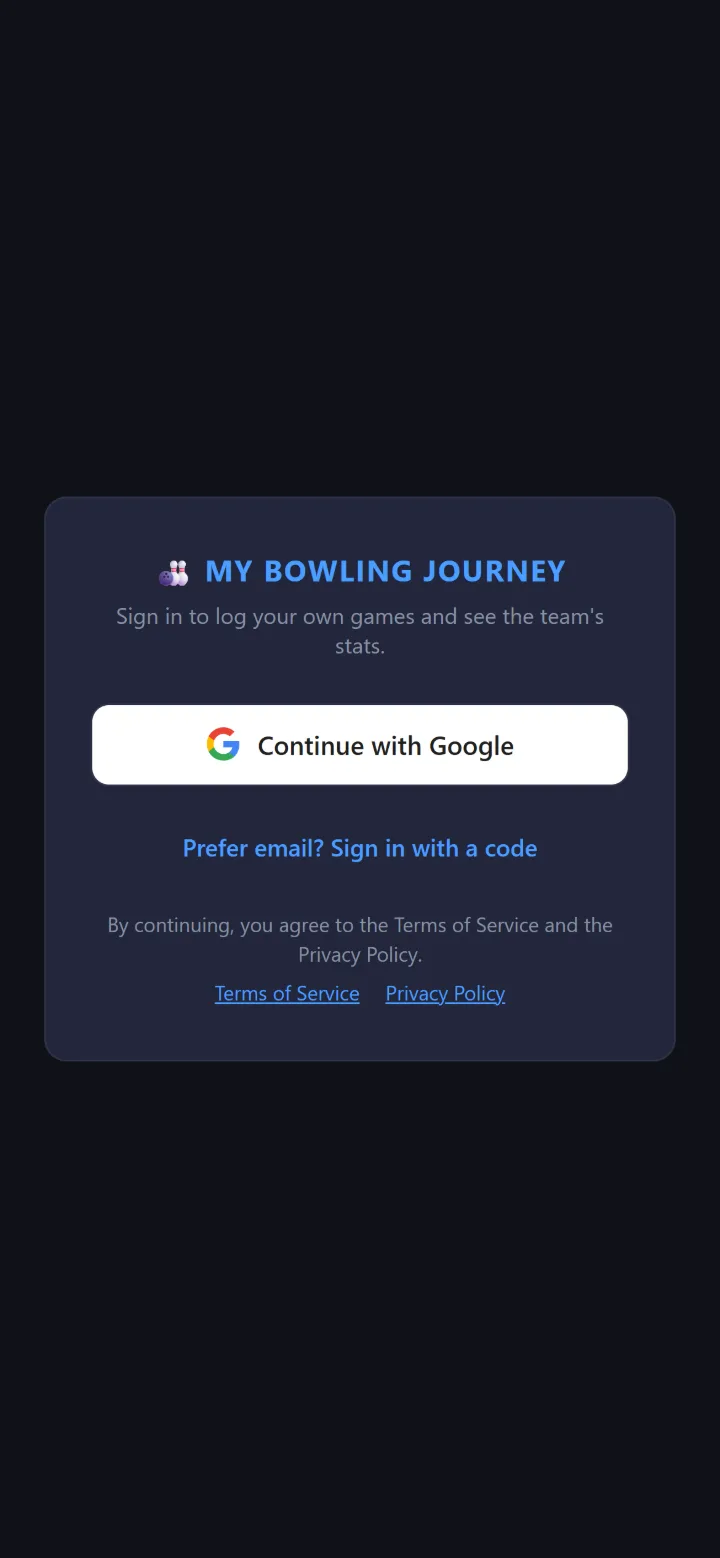
The sign-in screen shows the ways in that work on your device:
- Android phone: Continue with Google, or a code sent to your email.
- iPhone: Sign in with Apple, Continue with Google, or a code sent to your email.
- Web browser: Continue with Google, or a code sent to your email.
By continuing, you agree to the Terms of Service and the Privacy Policy. Both are linked at the bottom of the screen.
With Google or Apple
- Tap Continue with Google, or Sign in with Apple on an iPhone.
- Pick your account and confirm.
On an iPhone, the first time you sign in with Apple, Apple can share your name with the app. The setup screen then starts with it filled in.
With a code sent to your email
- Tap Prefer email? Sign in with a code.
- Type your email and tap Email Me a Code.
- Open the email. It has a 6-digit code in it.
- Type the code. The app signs you in as soon as the sixth digit is in.
- The code lasts an hour.
- The same email has a sign-in link too. It only works where you asked for the code: in the app you asked from, or the same browser on the website.
- Not there in 2 or 3 minutes? Check your spam or junk folder.
- If the code doesn't work, the app says so. Check it and type it again, or tap Use a different email to go back and send a new one.
The setup screen
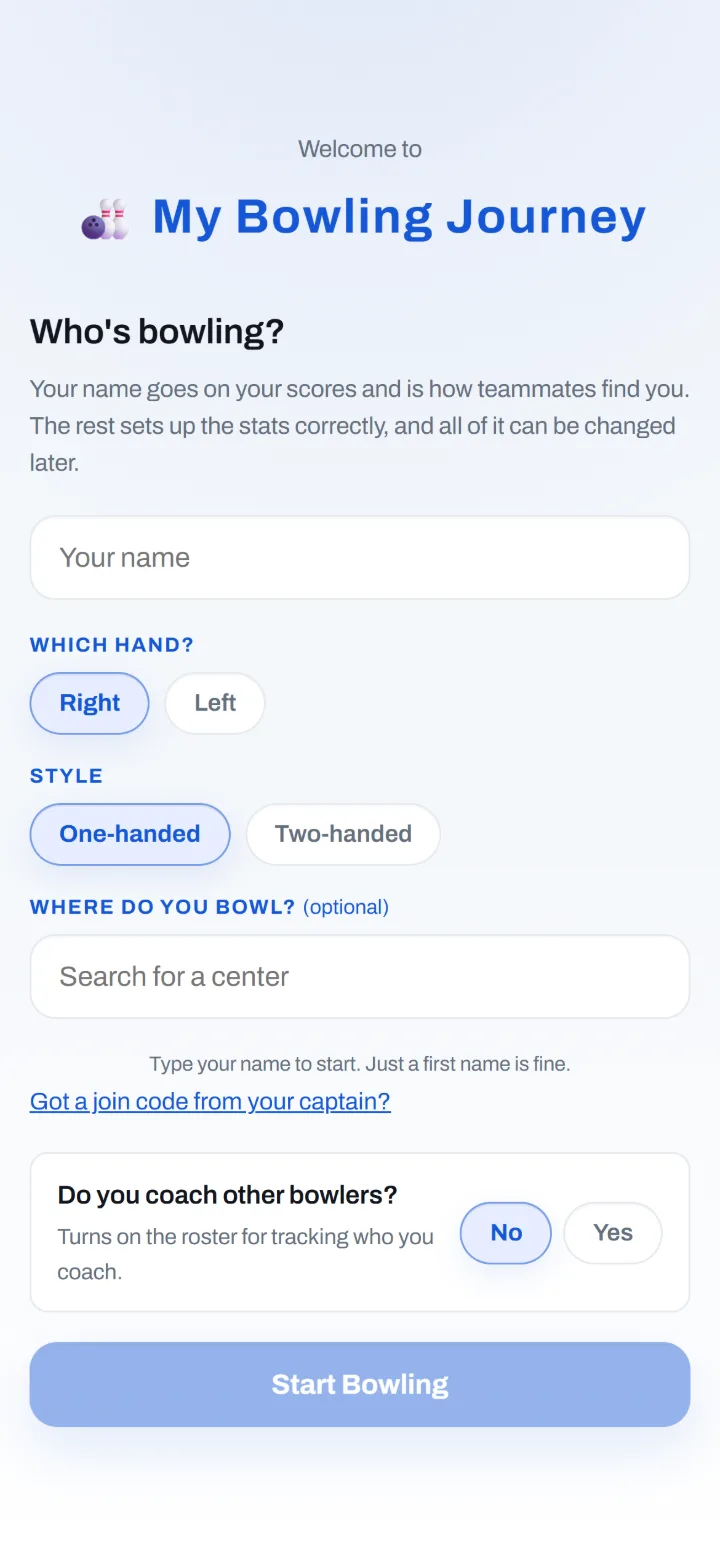
The first time you sign in, one short screen asks a few things before the app opens. Your name, hand, style and centers can all be changed later in Settings > Profile.
- Who's bowling? Type your name. Just a first name is fine. It goes on your scores and it's how teammates find you.
- Which hand? Tap Right or Left. Right is picked to start.
- Style: tap One-handed or Two-handed. One-handed is picked to start.
- Where do you bowl? This one's optional. Type at least three letters of your bowling center in the Search for a center box, then tap it in the list. Bowl at more than one? Add them all. Tap one you added to take it off.
- Did your captain give you a code? Tap Got a join code from your captain? and type it in the Join code box. It puts you straight onto your team, with anything they've already logged for you.
- Do you coach other bowlers? Leave it on No unless you do. Yes turns on a roster for the bowlers you coach.
- Tap Start Bowling. It's faded and does nothing until your name is in. Until then the screen says "Type your name to start. Just a first name is fine."
If the join code is wrong, the app tells you and stays on this screen so you can fix it. If you're offline, the app says so and stays on this screen. Clear the code, tap Start Bowling, and enter the code later on the Team tab in Setup.
After setup
Next, a screen says You're all set and asks Bowling league tonight? Pick one:
- Start a league night: set up your league and team, then start scoring. See Your first league.
- Preview an Example Account: look around the app filled with a made-up season. See The example account.
- Go to the home page: straight to Home.
If you used a join code, this screen also tells you which team you're on. Walkthroughs and video guides are in Settings > Help and About whenever you want them.
Signing out
Sign out is in Settings > Account, on the Account card. It signs out this phone only. If something you entered hasn't reached your account yet, the app says how many changes are still waiting, so get back online first if you can.
Signing in on a new phone
- Open the app on the new phone.
- Sign in the same way you did before: the same Google or Apple account, or the same email.
Your bowling comes back from your account. If you've done the setup screen before, or have any bowling saved, it's skipped and you land on Home.
Under 13
When you install the app and when you sign in, the app asks your phone's app store for the age range of the phone's main user. If the store says under 13, the sign-in screen is replaced by "This app is for bowlers 13 and older", and no one can sign in or create an account on that phone. An account already signed in there is signed out on that phone and its copy is removed from the phone. The account itself stays. A parent or guardian can keep a younger bowler's scores under their own account, on their own phone. Try again asks the store once more, for example after a parent changes what it shares.