 MY BOWLING JOURNEY
Tapped the wrong pin? Typed the wrong score? Everything on Scoring can be fixed, during the night or after it.
Before a ball is saved: Clear and Undo
The third button beside the pins takes back what you've tapped on the ball you're entering now.
- On a first ball it's Clear: it takes back the pins you tapped.
- On a second ball it's Undo: it takes back the pins you tapped for that ball. With none tapped, it goes back to the first ball.
A first ball that leaves pins isn't saved on its own. It waits for its second ball, after Continue to 2nd ball, and both are saved together with Save frame. Until then, Clear and Undo are all you need.
Neither one changes a frame that's already saved. For that, tap the frame on the scoresheet.
Change a frame you already saved
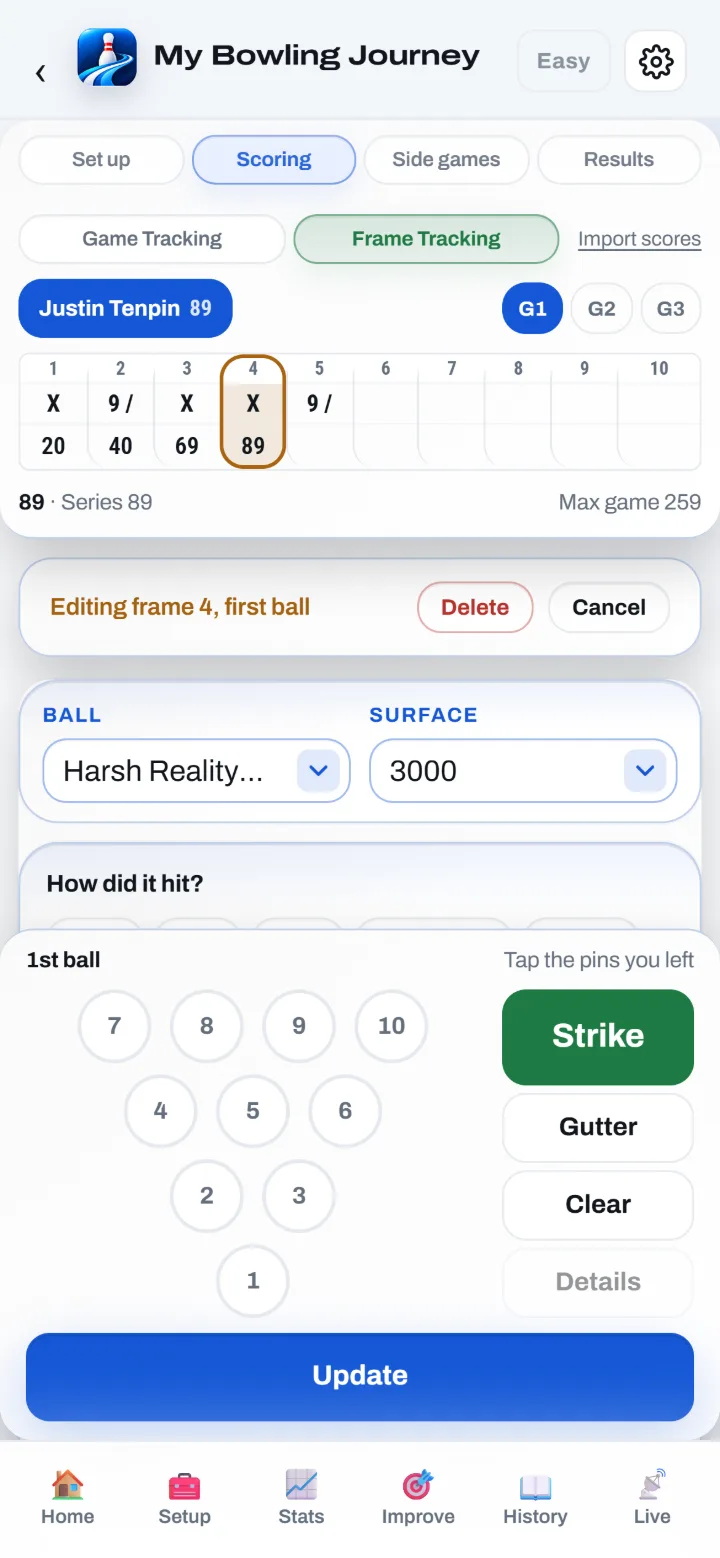
- On Scoring, tap the frame on the scoresheet at the top. For an earlier game, tap its chip first (G1, G2 and so on, at the top right), then the frame.
- A banner says which ball you're changing, like Editing frame 4, first ball. The pin deck shows that ball's pins.
- Fix the pins. If it's a leave, Continue to 2nd ball takes you to its second ball.
- Tap Update. Strike, Spare and Missed save straight away, just as they do while you score.
- Changed your mind? Tap Cancel in the banner. Nothing changes.
While a frame is open, you can also change that ball's ball and surface on the ball line, and how it hit and its other details with Details on the pin deck. They're saved when you tap Update. See Details.
The 10th frame: after a strike, or a spare and its fill ball, tapping it asks Edit the 10th: which ball? Pick Ball 1, Ball 2, Ball 3 or Fill Ball. An open 10th opens straight away, like any frame. See The 10th frame.
A few things to know:
- Tapping an empty frame does nothing. The next ball is always the first one you haven't entered.
- Tap the frame you're bowling now to close a fix you opened by mistake, as long as you haven't changed anything.
- On a league night you can fix a teammate's frame the same way, as long as you're the one who scored it. A frame logged on someone else's account can only be changed by them.
Delete a ball or frame
- Tap the frame on the scoresheet.
- Tap Delete in the banner. The app asks first, for example "Delete frame 4 of game 1? This cannot be undone."
- Tap OK. The pin deck goes back to that frame so you can enter it again.
In frames 1 to 9, both balls of a frame are one entry, so the whole frame goes. In the 10th, deleting ball 1 deletes the whole 10th. Deleting ball 2, ball 3 or the fill ball deletes only that ball.
Delete a game
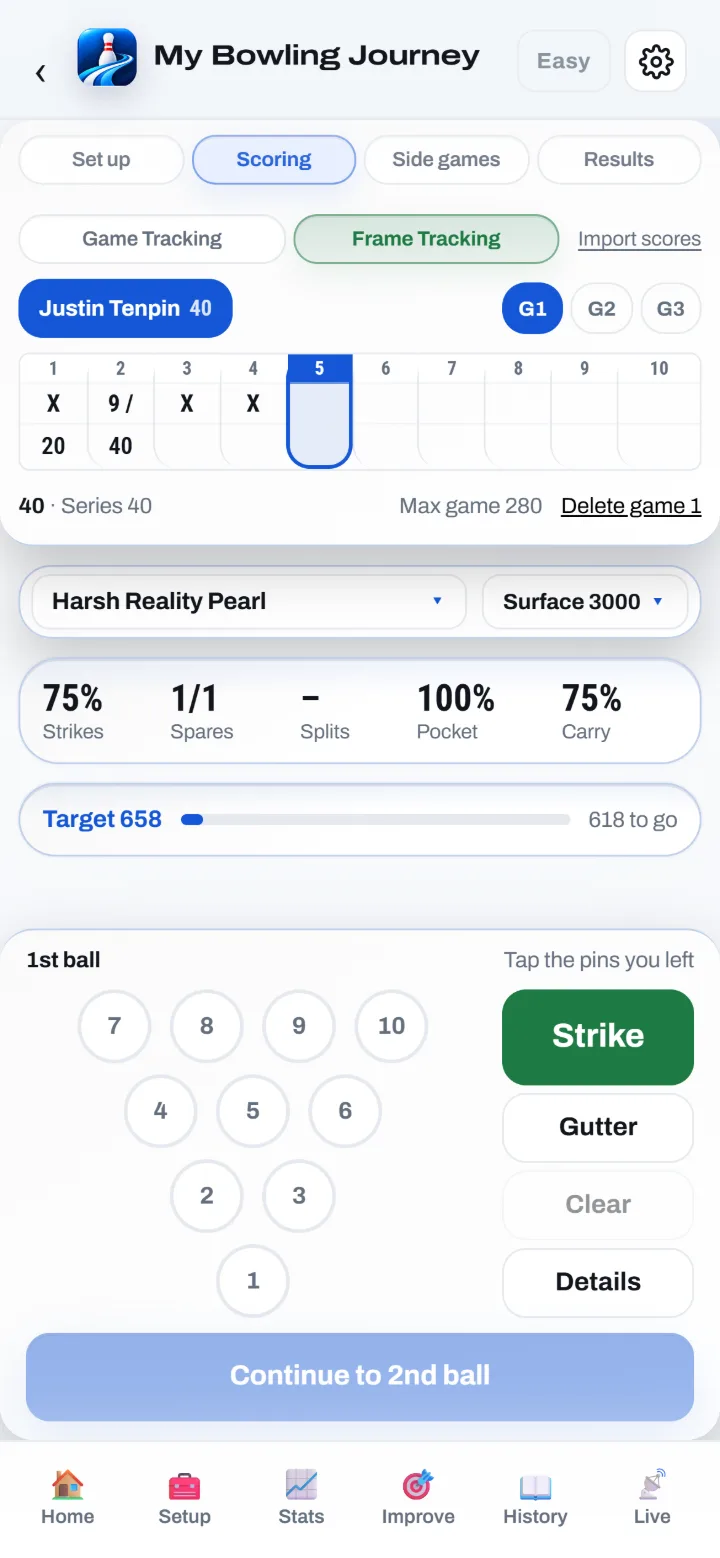
- On Frame Tracking, show the game on the scoresheet (tap its chip if it's an earlier one). On Game Tracking, tap the game's box.
- Tap Delete game 1 (it names the game). Frame by frame it's at the right of the line under the scoresheet; on Game Tracking it's under the boxes, once that game has a score.
- The app asks: "Delete game 1? This removes the score and every frame logged for it. It can't be undone." Tap Keep it to back out, or Delete game 1 to delete.
It deletes that game for the bowler on the chip only. Scoring goes back to frame 1 of that game, with your ball and surface still picked. In practice, the × beside a game in Enter Game Scores does the same.
Delete a whole night
While you're still bowling it: Cancel League, at the bottom of Set up, deletes tonight and takes you Home. See Saving and finishing for what it removes.
After it's saved:
- Go to History > Calendar.
- Tap the day.
- Tap Delete this night. The app says how many games go, with every frame logged with them.
- Tap Yes, delete it, or Keep it to back out.
If that day was a tournament's only day, the whole tournament goes with it, and the app says so first. A night logged on another bowler's account has no Delete: only they can delete it.
Which score counts?
A typed score always wins. If you type a game's score, that's the game's score, whatever its frames add up to.
- Game Tracking: a game you bowled frame by frame shows its score grayed in its box. Type a score and the typed one counts. To go back to the frames, empty the box and tap another game's box.
- Practice, Enter Game Scores: when a typed score and a finished game's frames disagree, a red "≠ frames say 212" link shows under it. Tap it to drop the typed score and use the frames.
- A game you only bowled partway counts in the night once all ten frames are in, or once you type its score.
- Importing a card: if the card and your typed score disagree, the app asks which one counts. See Importing scores.