 MY BOWLING JOURNEY
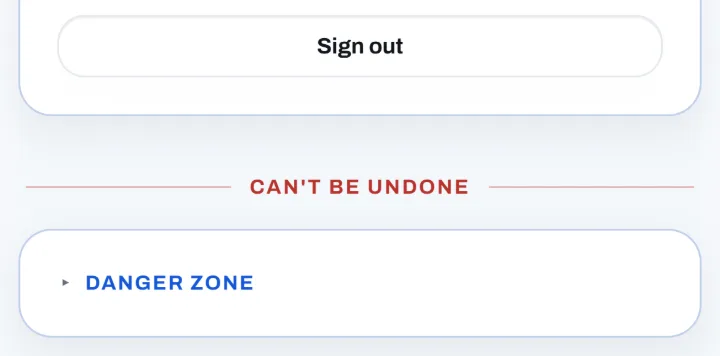
The Account tile has three cards: your plan, how you're signed in, and the Danger Zone.
- Tap the gear at the top right of any screen.
- Tap Account.
Subscription
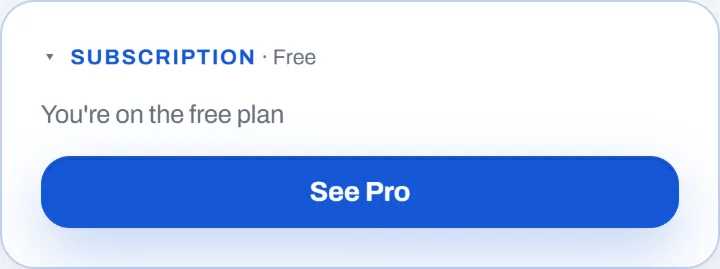
Subscription is open when the tile opens. Its heading says Pro or Free, and the line under it says where you stand:
- "You're on the free plan".
- During your first 30 days, how long your Pro trial has left.
- "You're subscribed".
- "Ending: you keep Pro until the period you paid for runs out" after you cancel.
- "There's a problem with your payment method" when a payment didn't go through. Pro stays on while your store tries the payment again.
Its button, See Pro or Manage subscription once you subscribe, opens the Pro screen. See Subscribing and managing Pro.
The Account card
Account shows the email you're signed in with. That's the account everything you bowl is saved to. Sign in the same way on another phone or on the website and it all comes back.
Signing out
- Tap Account to open the card.
- Tap Sign out.
- The app asks "Sign out of this account?" Confirm it.
Signing out only signs out this phone. You stay signed in everywhere else, and this phone stops getting the notifications sent to your account, like requests and Live alerts.
If something you entered hasn't reached the cloud yet, the question says how many changes are waiting, like "3 changes have not reached the cloud yet. Signing out now may lose them. Sign out anyway?" Cancel, get back online and give it a moment to save. See Bowling with no signal.
If signing out doesn't go through, it says "Could not sign out. Check your connection and try again."
To sign back in, or on a new phone, see Creating an account and signing in.
The Danger Zone
Under the line that says Can't be undone, the Danger Zone has Clear All Data (once you have frames, game scores or nights of your own) and Delete My Account. Each asks before it does anything. See Clear All Data and Deleting your account.